Introduction
Summary
In recent years, there is an increasing demand to automatically control from
TEM control to acquisition of images, and to control the TEM remotely.
Until now, it was necessary to organize programs using TEM external control
(TEMExt) written in C ++, but there are problems such as the high level of
hurdling to create programs in C ++ language and few functions available in TEMExt had.
PyJEM solved these problems. Since PyJEM is a python library,
we can interactively control TEM.
In addition, functions available from existing TEMExt are powered up, enabling remote control.
Environment
OS
Windows® 7 64bit※1Windows® 10 64bit
Windows® 11 64bit
Python version
Python 3.5 64bit※1Python 3.7 64bit※1Python 3.8 64bit※1Python 3.9 64bit
Python 3.10 64bit
Python 3.11 64bit
Python 3.12 64bit
Relative library
opencv-python
httplib2
comtypes
※1 Support ends in FY2025
Functions
Use the following guide to choose packages by purpose. For function-level details, see API Reference.
1) Detector/Camera control
Packages:
detector,detectorext,sightx,femtus.acquisitionPurpose: Control JEOL detectors and cameras
Typical use:
Image acquisition
Auto-focus execution
Get/Set detector and camera conditions
Note:
Since the available features differ between packages, please refer to each package’s API for details.
2) TEM control
Package:
TEM3Purpose: Control TEM functions exposed via TEMExternal
Typical use:
Beam control
Stage movement
Aperture operations
EOS/GUN/Lens/Vacuum related control
Note: TEMExternal setup is required.
3) EDM control
Package:
edmPurpose: Control EDM (Signal Combiner hardware control)
Typical use:
Beam blanking control
Reduction of beam exposure
Related EDM control operations
Get EDM settings
Note: Availability depends on system configuration.
4) FEMTUS control
Purpose: Acquisition and analysis workflows for FEMTUS
Typical use:
Scan and detector data acquisition
Worksheet creation, loading, and related operations
Image processing, worksheet/output/log operations
Note: Available features depend on connected software/hardware and options.
5) EDS/EELS control
Purpose: The acquired image data is analyzed (EELS/EDS).
Typical use:
EELS/EDS data handling and analysis
Note:
Only the EELS/EDS systems that can be controlled via FEMTUS are supported.
Image acquisition is performed through the Detector/Camera control.
Connection model
PyJEM communicates with JEOL software through REST API and COM communication. The required setup depends on where the Python script is executed.
Overview
PyJEM does not control the microscope hardware directly. It sends commands to the software running on TEMPC, and that software controls the detector or TEM functions.
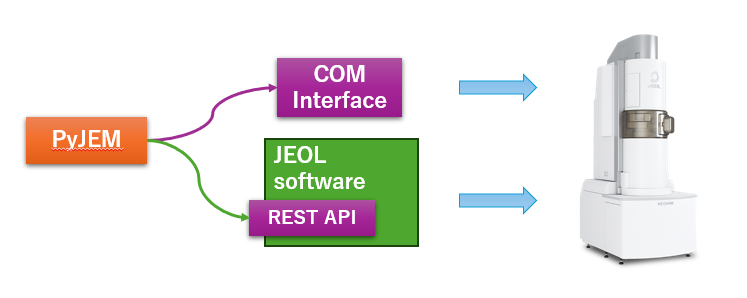
Overall communication flow between PyJEM, TEMPC, and JEOL control software.
1) Run PyJEM on TEMPC
Use this configuration when the Python script is executed on the same PC as TEMPC.
PyJEM and the JEOL control software run on the same machine.
PyJEM can use the default communication settings.
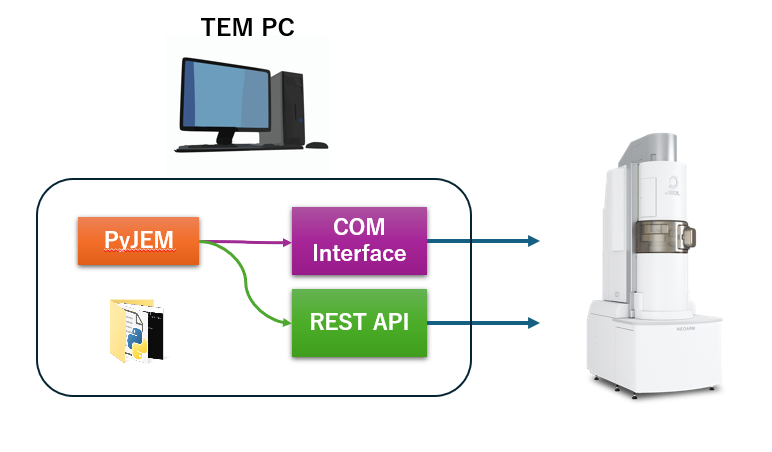
Local execution on TEMPC.
2) Run PyJEM on another PC
Use this configuration when the Python script is executed on a PC different from TEMPC.
Install TEMExternal on the PC that executes the script.
Remote configuration is required.
Change the PyJEM communication setting so that
IPAddresspoints to TEMPC.
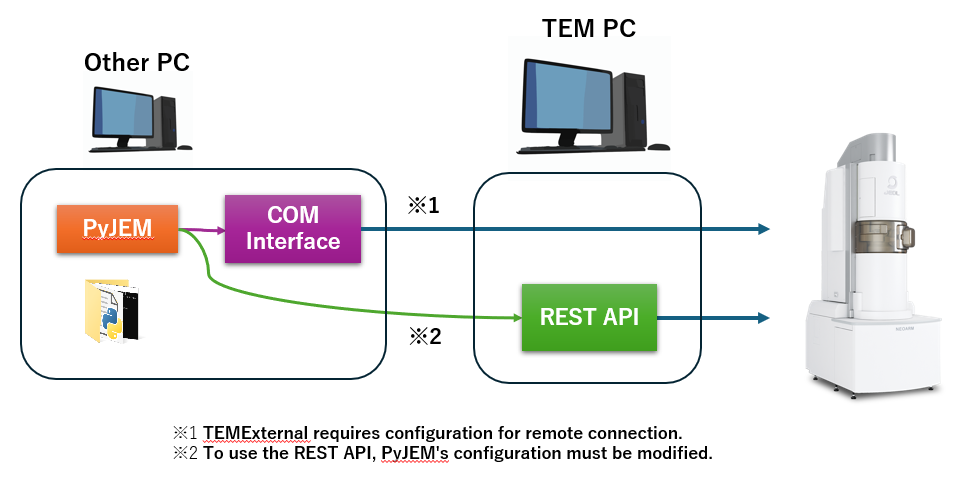
Remote execution from another PC to TEMPC.
Forum
The PyJEM Forum is hosted on GitHub and serves as a place for users to share scripts, ask questions, and exchange information about PyJEM.
To acceess the forum page: Forum page.
Issue page
JEOL publishes the following through the issue page:
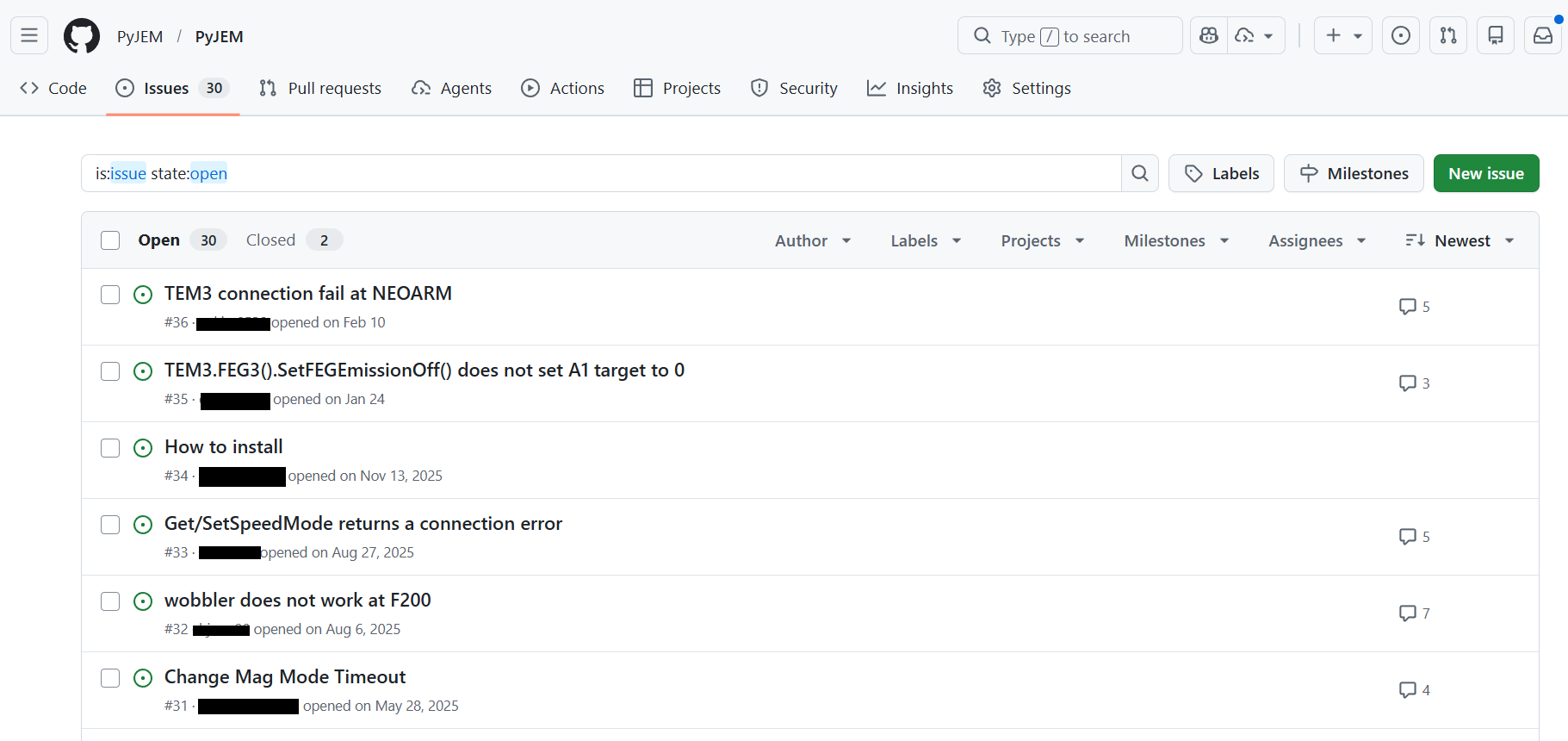
Example: announce on the PyJEM Forum.
Features
PyJEM release notes and update information
Usage guides and tutorials
Answers to frequently asked questions
To access and use the issue page:
Sign in to GitHub.
Navigate to the issue page.
Open or create an appropriate topic (Issue or Discussion).
Sharing scripts
Users can share their own PyJEM scripts with the Script sharing page.
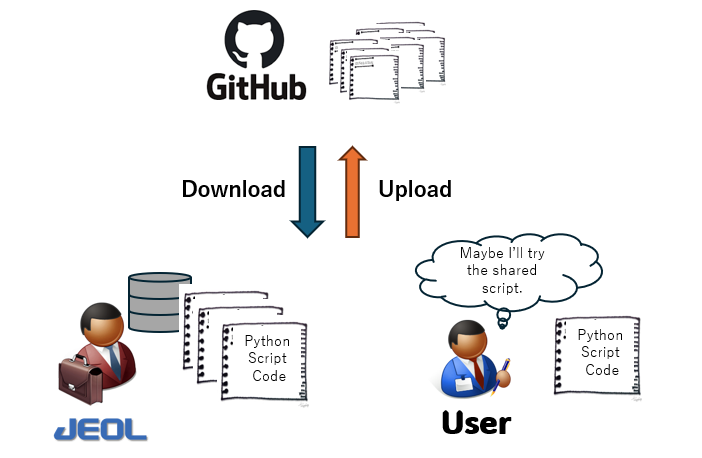
Example: sharing a script on the PyJEM Forum.
To access and use share a script:
Sign in to GitHub.
Navigate to the Script sharing.
Paste your script in the message body, or attach it as a file.